
Wallpaper Engine Not Working? Fix Crashes and Black Screens
Start with the problem you can see. A missing app window, a black video wallpaper and a Windows crash need different fixes.
Reviewed and updated September 2026

Choose the problem that matches yours
| What happens | Start here |
|---|---|
| No Wallpaper Engine window opens | Check the icon beside the Windows clock. The app may already be running. |
| The app window itself is black or white | Check blocked files and try User Interface in Safe Mode. |
| Only video wallpapers are black | Check video playback and the Windows N media requirement. |
| One wallpaper fails, but others work | Try another wallpaper and check the affected item’s Workshop page. |
| Windows freezes, restarts or shows a blue screen | Use the system-crash section below. |
Repair the app files through Steam
- Click Verify integrity of software files.
- Wait for Steam to finish checking and replacing damaged or missing files.
- Launch Wallpaper Engine again and test the same problem.
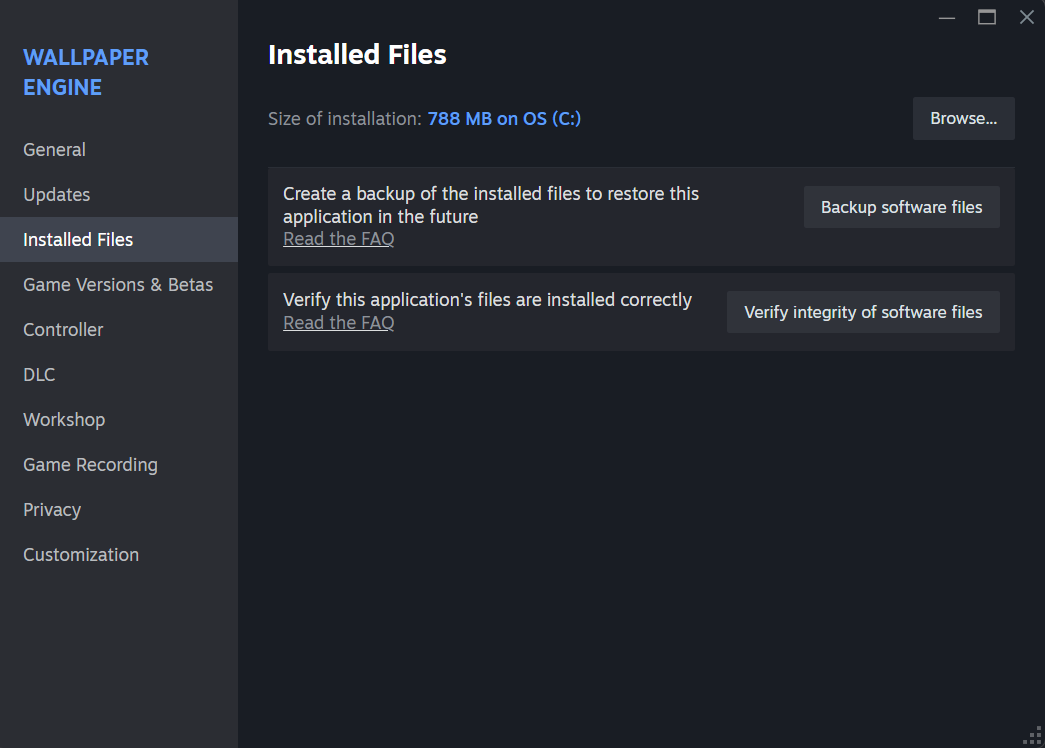
Fix a black or white app window
Check your antivirus app’s protection history for blocked Wallpaper Engine files. If it blocked the Steam-installed app, follow the security app’s instructions to allow that file, then verify the files in Steam again.
If the window is still unusable, try Wallpaper Engine’s interface safe mode:
- Right-click Wallpaper Engine’s icon beside the Windows clock and select Quit.
- Launch Wallpaper Engine from Steam.
- Select User Interface in Safe Mode in Steam’s launch options.
If you see white lines across the interface, check whether NVIDIA Image Sharpening is enabled for Wallpaper Engine. Turn that override off. For other display glitches, follow the developer’s driver guidance.
Fix video wallpapers that stay black
Try a second video wallpaper and a scene wallpaper. If scenes work but videos do not, focus on video playback rather than reinstalling your entire wallpaper library.
- On Windows 10 N or Windows 11 N, install Microsoft’s Media Feature Pack and restart Windows. These editions lack the media components needed for video playback.
- Close screen recorders, overlays and video tools for a comparison.
- Follow the developer’s video troubleshooting steps if both video wallpapers still fail.
Fix crashes or heavy stuttering
If the problem happens only with one wallpaper, choose a simpler one and check the affected wallpaper’s Workshop page for reports from its creator or other users.
If several wallpapers crash, note the full error message. The developer’s crash guide identifies common errors by the file named in the message. Update your graphics driver from Intel, AMD or NVIDIA; use the manufacturer’s clean-install instructions if a normal update does not fix it.
If Windows freezes or shows a blue screen
A whole-PC crash needs a Windows, driver or hardware check. It is different from Wallpaper Engine closing on its own. Write down the Windows stop code, undo any recent overclock, and follow the system-crash guidance.
Do not keep repeating the same test if the PC is shutting down or losing work.
What to send support
Include the exact error, your Windows version, graphics card, the affected wallpaper’s Workshop link, and what you already tried. Say whether the problem affects one wallpaper or every wallpaper.