
How to Use Wallpaper Engine on Multiple Monitors
Use a different wallpaper on each screen, stretch one across your setup, or split an ultrawide into separate wallpaper areas.
Reviewed and updated September 2026
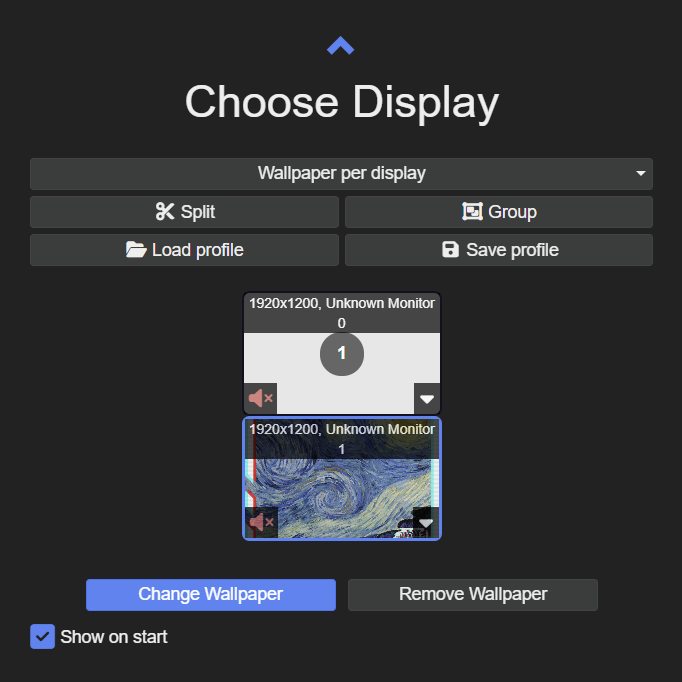
Match the screen layout in Windows
- Click Identify to see which number belongs to each monitor.
- Drag the screen rectangles into the same left-to-right order as your real monitors. Match their vertical positions too.
- Select each screen and check its Display resolution and Display orientation. Use the recommended resolution unless you have a reason to change it.
Put a different wallpaper on each monitor
- Select the monitor you want to change.
- Click Change Wallpaper and choose a wallpaper for that screen.
- Repeat for the other monitor.
Stretch one wallpaper across your screens
Group joins screens so they can share one wallpaper. Choose a wallpaper with a shape close to your combined desktop. Two 1920 × 1080 screens side by side form a 3840 × 1080 area, so a wide wallpaper fits better than a standard 16:9 image.
Keep the main subject away from the join between monitors. The physical screen borders will interrupt anything placed there.
Split one screen into wallpaper areas
Split is for putting different wallpapers in separate parts of one monitor. It is useful on an ultrawide screen when you want more than one background. It does not divide your Windows desktop into separate physical monitors.
Fix a wallpaper that does not line up
Wallpaper Engine lines up monitors by pixels, not by their physical size. Two screens can look the same size on your desk but have different resolutions. A stretched wallpaper will not necessarily meet at the same height on both.
- Check the screen arrangement in Windows Settings > System > Display.
- Compare the wallpaper’s shape with the full desktop area. A normal widescreen image will be cropped heavily across two side-by-side monitors.
- If the screens have very different resolutions or sizes, use a separate wallpaper on each screen.
Fix wallpapers assigned to the wrong screen after startup
If the wallpaper moves to the wrong monitor after Windows starts, try Layout or GDI for Monitor identification, then check the assignments again. These options help when a graphics driver changes how it identifies your displays.
Reduce the load of several live wallpapers
If extra monitors make games or the desktop feel slower, try a lighter wallpaper on the secondary screen. Set fullscreen playback to Pause or Stop (free memory) in Wallpaper Engine’s Performance settings.
On desktop PCs, using the same graphics card for all monitors avoids copying the desktop image between different graphics cards.