
Wallpaper Engine Workshop Wallpapers Not Downloading or Updating
Steam downloads Workshop wallpapers. If a wallpaper is stuck at a percentage or waiting for an update, check Steam’s download queue first.
Reviewed and updated September 2026

Check what is actually stuck
| What you see | What to do |
|---|---|
| Downloading data or Updating files in Steam | Let Steam finish both stages. A 100% download can still need file verification. |
| A paused Workshop transfer | Resume it in Steam’s Downloads page. |
| A disk-write error or Content file locked | Use the error-specific help linked below. |
| The wallpaper is installed but will not display | Check playback or the troubleshooting guide instead of clearing downloads. |
1. Check Steam’s download queue
- Find the Wallpaper Engine Workshop transfer. Resume it if it is paused.
- Wait for the download and file checks to finish. Watch whether the amount downloaded or the file progress changes.
- If nothing moves, restart Steam and try again without a game running. Check Steam’s Settings > Downloads for limits that pause or restrict downloads.
2. Clear the download cache
Clearing the cache removes Steam’s temporary download data. It does not uninstall your games, but it signs you out of Steam. Make sure you can sign back in before continuing.
- Select Clear Download Cache and confirm.
- Sign back into Steam.
- Return to Downloads and check the transfer again.
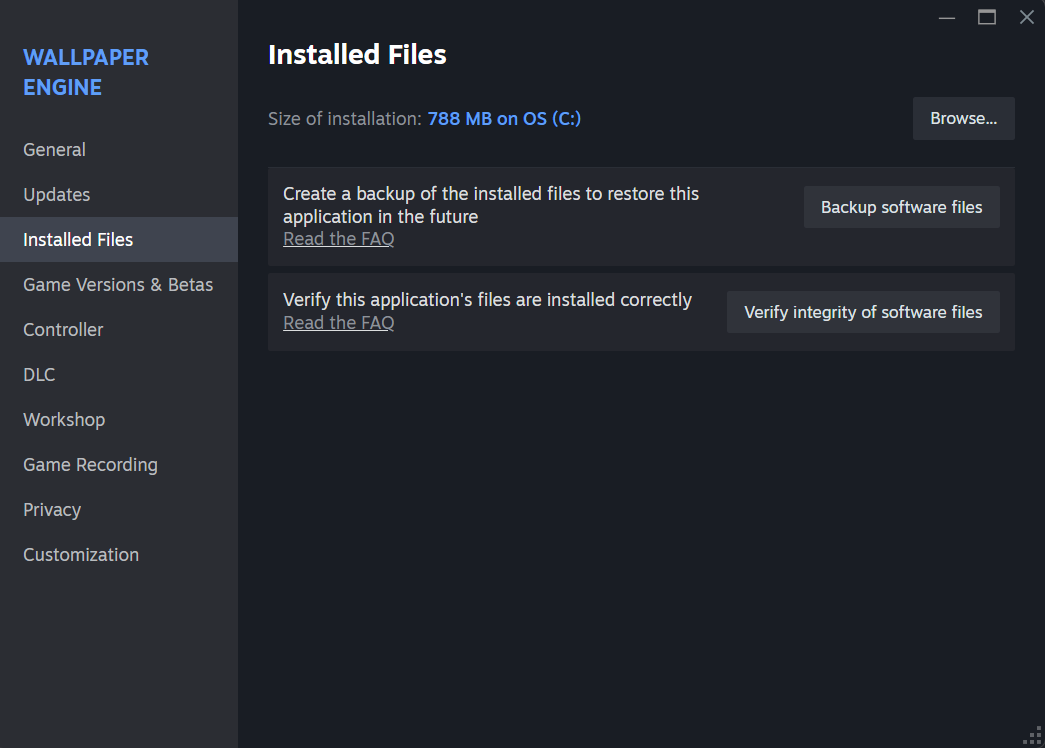
3. Verify Wallpaper Engine’s files
Click Verify integrity of software files and wait for Steam to finish. This checks the installed files and replaces missing or damaged files.
If only one wallpaper fails
Try downloading another wallpaper. If that works, open the affected item’s Workshop page and check that it is still available. Keep a copy of any downloaded files you cannot replace before unsubscribing or deleting them.
Use the exact error message to choose the next fix. Reinstalling Wallpaper Engine or clearing the whole library is a poor first step for a problem with one item.