
Wallpaper Engine Playlists: Timers and Daily Schedules
Use a playlist to rotate between wallpapers. A timer changes them at regular intervals; a daily schedule assigns them to times of day.
Reviewed and updated September 2026
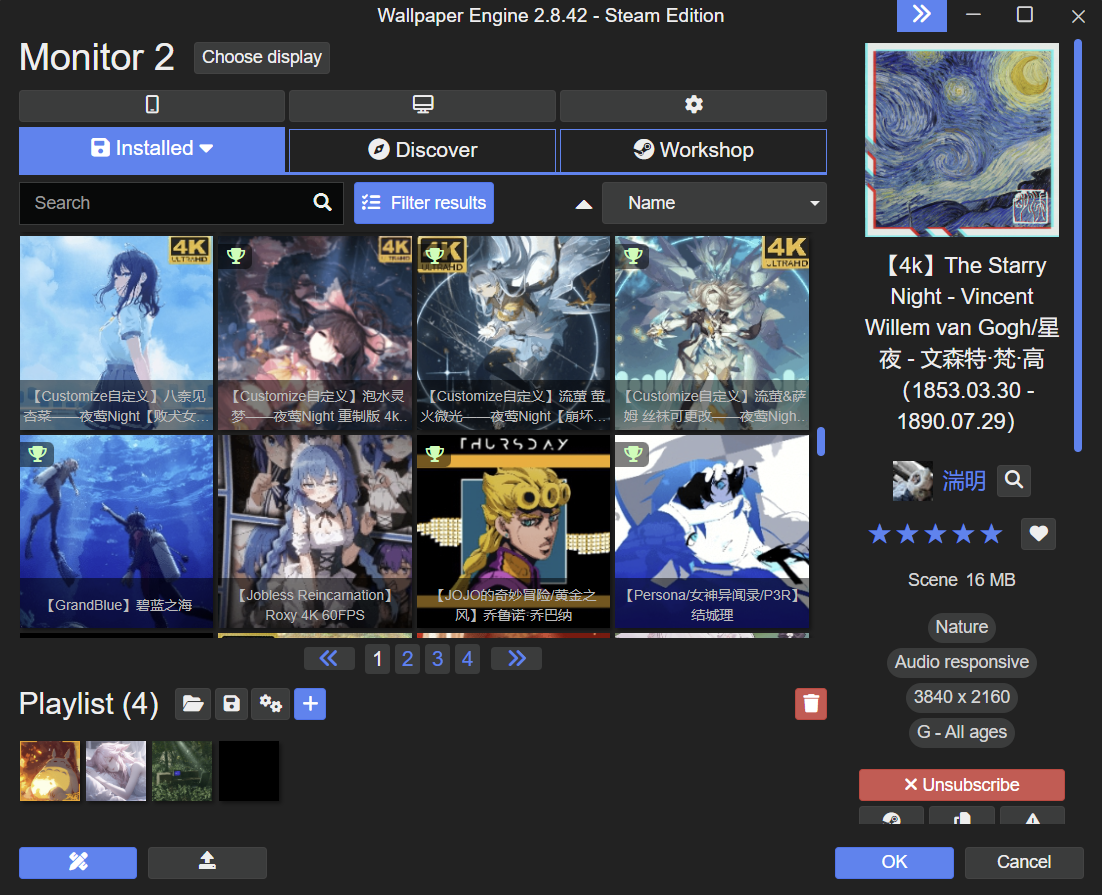
Find the playlist controls
The playlist strip is below the wallpaper grid. The number beside Playlist is the number of entries in it. If you use several monitors, choose the screen you want to configure first.
Change wallpapers on a timer
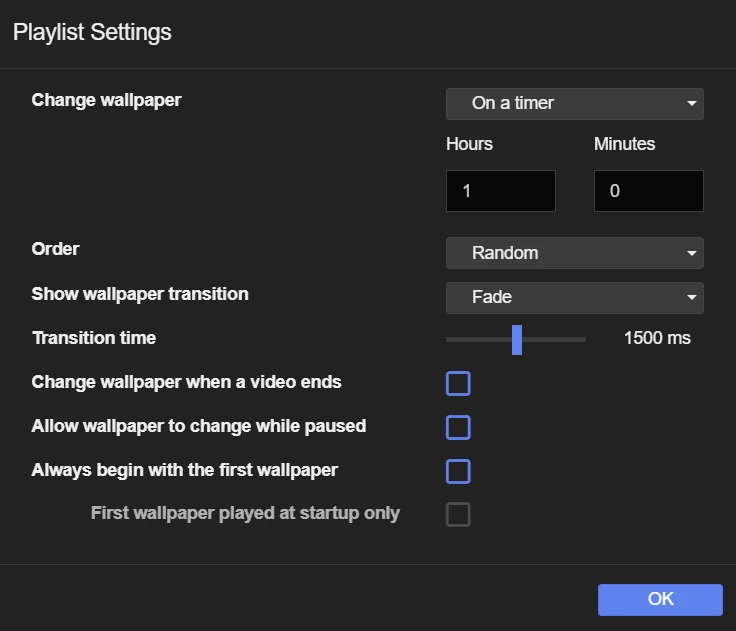
- Open Playlist Settings using the gear button beside the playlist.
- Choose On a timer under Change wallpaper.
- Set the interval. The screenshot uses one hour.
- Choose the playback order and transition, then click OK.
Save your playlist
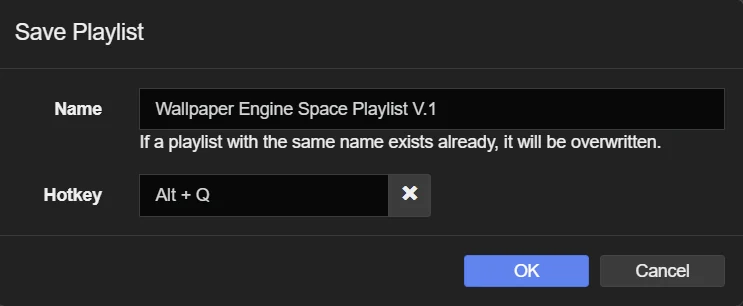
Use the save button beside the playlist, enter a name and confirm. Choose a new name if you want to keep an existing saved playlist.
Use different wallpapers during the day
Time-of-day scheduling lets you assign wallpapers to parts of the day instead of changing them every fixed number of minutes. For example, you could use a bright wallpaper during the day and a darker one in the evening.
If the playlist appears not to change
- Check that the playlist contains more than one wallpaper.
- Check the timer interval. A one-hour timer will not switch after a few minutes.
- Check whether a fullscreen app or an application rule has paused or stopped playback.
- Select the correct display if you use more than one monitor.
Change wallpapers when a particular app opens
Application rules can load a wallpaper, playlist or display profile when a chosen program runs. Use this for app-based changes, such as a different background while a game is open. It is separate from choosing a time of day.