
Wallpaper Engine: Complete Starter Guide
Get a live wallpaper running, adjust it to your screen, and keep it from getting in the way of games. This guide also covers where to start if you want to make your own.
Reviewed and updated September 2026
Install Wallpaper Engine
Buy Wallpaper Engine once on Steam. Workshop wallpapers are free to subscribe to after that. You need Windows 10 or Windows 11; allow at least 1 GB for the app and extra room for downloaded wallpapers.
Steam classifies Wallpaper Engine as Software. Enable that library filter if you cannot find it. Once installed, click Launch.

Find your first wallpaper
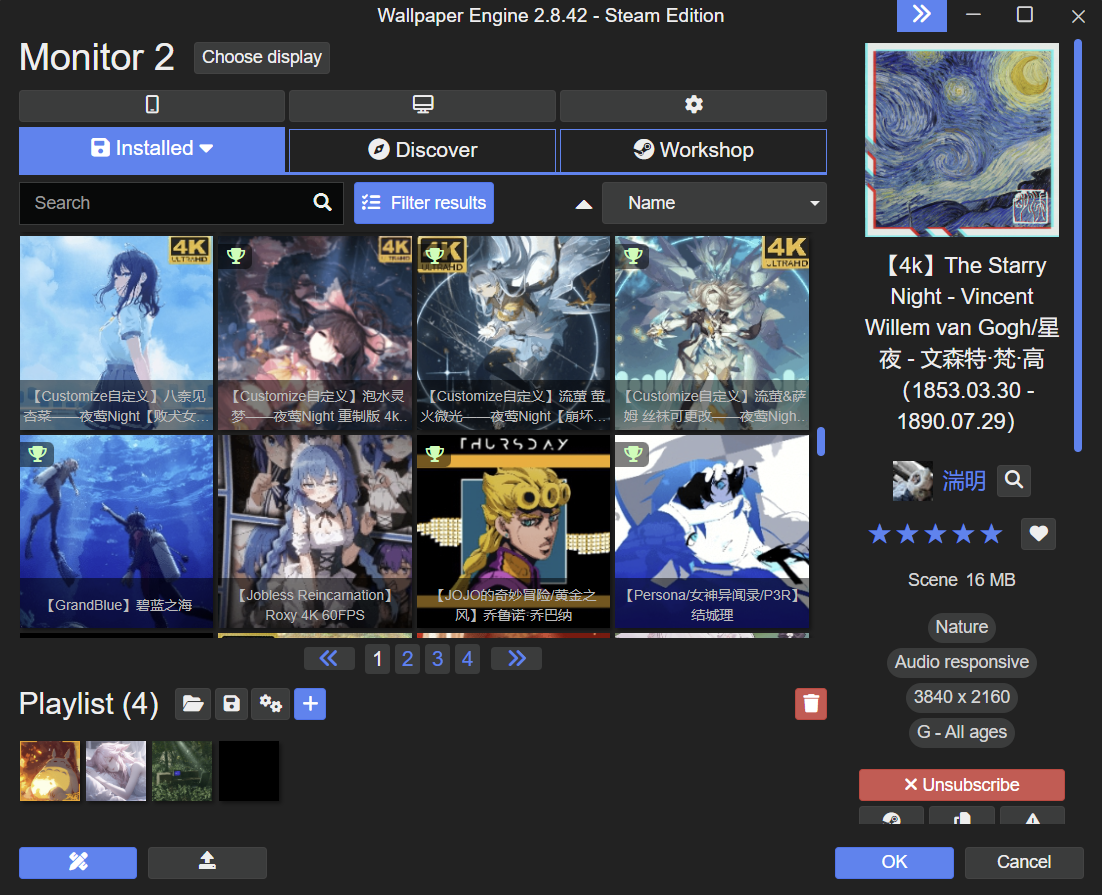
Use Workshop to find new wallpapers and Installed to see the ones already on your PC. Subscribing downloads a wallpaper through Steam.
- Search for a subject you like.
- Open Filter results to narrow the list by resolution, type or age rating.
- Select a wallpaper, check its preview and file size, then click Subscribe.
- Select it from Installed and use the controls on the right to adjust it.
| Type | What it means |
|---|---|
| Scene | An animated scene with effects. Many include controls for colours, movement or audio response. |
| Video | A video that plays as your desktop background. |
| Web | A wallpaper built with web technology, often with interactive features. |

Use the right screen
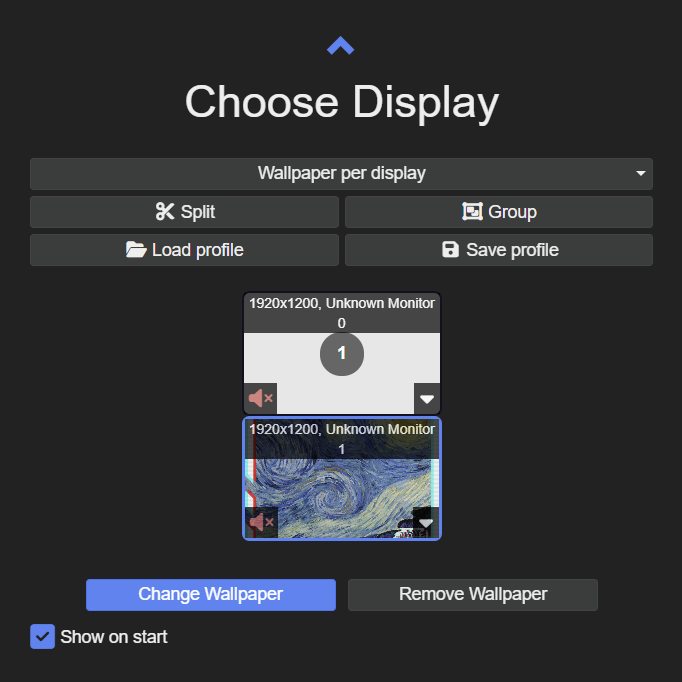
For a different wallpaper on each monitor, leave Wallpaper per display selected. Choose a screen before changing its wallpaper. Group is for sharing one wallpaper across screens; Split divides one screen into separate wallpaper areas.
Adjust sound and audio response
A wallpaper’s sound and its reaction to music are different settings. The volume control changes what you hear. Audio recording lets an audio-responsive wallpaper react to sound from your PC.
- Select the wallpaper and check its controls on the right. Each creator chooses which options to include.
- For wallpaper sound, open Wallpaper Engine’s Settings > General and enable Audio output. Also check that the display is not muted in Choose display.
- For animation that reacts to music, choose an audio-responsive wallpaper and check Audio recording device in Wallpaper Engine’s General settings.
Start with Windows and pause for games
Turn on Start with Windows so you do not have to open Steam every time you want your wallpaper. Wallpaper Engine starts in the background; its icon beside the Windows clock opens the app.
In Wallpaper Engine’s Settings > Performance, set Other application fullscreen to Pause. Use Stop (free memory) if you also want to free the wallpaper’s memory while playing a demanding game.

Rotate wallpapers with a playlist
The playlist strip sits below the wallpaper grid in Installed. Its gear button opens Playlist Settings, where you choose when wallpapers change. On a timer changes them at regular intervals.
Make your first wallpaper
Start with an image you made or have permission to use. Open Wallpaper Editor and create an image-based project. Add one effect, preview it, and check how it looks on your desktop before adding more.

